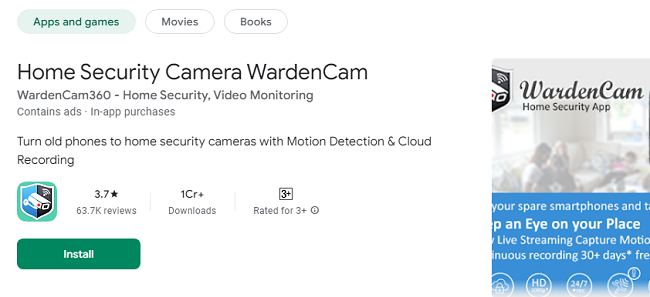
In today’s digital age, ensuring the safety and security of your home or office is paramount. Traditional CCTV cameras are often costly and require a lot of infrastructure. However, with the advancement of smartphone technology, you can now turn your old smartphones into powerful security cameras to monitor video surveillance using apps like WardenCam.
WardenCam is an easy-to-use mobile application that allows you to repurpose your old smartphones as security cameras for surveillance purposes. It transforms your devices into high-definition video surveillance cameras and enables real-time monitoring, motion detection, cloud storage, and more.
In this guide, we will take you through the steps of setting up WardenCam, its key features, and how you can maximize its functionality to enhance your security system.
What is WardenCam?
WardenCam is a mobile app that transforms your old Android or iOS smartphones into high-quality security cameras. It uses the built-in camera of the smartphone to monitor your surroundings, providing real-time video feeds, motion detection alerts, and the ability to store footage on the cloud.
Whether you’re using it for monitoring your home, office, or any other space, WardenCam offers a cost-effective alternative to traditional security systems. You no longer need to invest in expensive surveillance hardware when you can easily repurpose old devices to serve as your security cameras.
Benefits of Using WardenCam App
Cost-Effective Solution: WardenCam allows you to turn your old smartphones into security cameras, saving you money on expensive CCTV systems.
Real-Time Monitoring: The app allows you to monitor live video feeds from anywhere, at any time, directly from your phone or computer.
Motion Detection: The motion detection feature automatically alerts you when it detects movement within the camera’s field of view, ensuring you're always in the loop.
Cloud Storage: WardenCam offers cloud storage, so your footage is securely stored, and you can access it anytime, even if something happens to your phone.
High-Quality Video: With HD video streaming capabilities, WardenCam provides high-definition video feeds for crystal-clear surveillance.
Easy Setup: The app is user-friendly, making it easy to set up and use, even for those with limited technical knowledge.
Guide to Set Up WardenCam Video Surveillance App
Step 1: Install WardenCam on Your Smartphone
Before you can start using WardenCam, you need to install the app on two smartphones: the device that will serve as the security camera (called the "Camera Device") and the device that will be used for monitoring the feed (called the "Viewer Device").
Download the WardenCam App:
For Android: Go to the Google Play Store, search for "WardenCam," and install it on both devices.
For iOS: Visit the App Store, search for "WardenCam," and install it on both devices.
Sign Up or Log In: After installing the app, sign up for a WardenCam account or log in if you already have one. This account will help sync the devices and save your footage to the cloud.
Step 2: Set Up the Camera Device
The first device you’ll configure is the one you’ll use as your surveillance camera. Follow these steps:
Open WardenCam on the Camera Device:
Launch the app on the device that will act as your security camera.
Enable the Camera:
Allow the app to access your camera and microphone. This will let WardenCam stream video and audio from your device.
Choose a Location for the Camera:
Place the phone in a strategic location where you want to monitor. It could be near an entrance, in a hallway, or in any area you want to keep an eye on.
Connect to Wi-Fi:
Make sure the camera device is connected to a stable Wi-Fi network for smooth video streaming.
Activate Motion Detection:
In the app, enable the motion detection feature. This will send alerts to your viewer device whenever movement is detected.
Enable Cloud Storage (Optional):
If you want to store your surveillance footage in the cloud, enable the cloud storage option. This ensures that you won't lose any footage in case your phone is damaged or lost.
Adjust Settings:
Set the video resolution, adjust the sensitivity of motion detection, and choose how you want to receive notifications (SMS, push notifications, etc.).
Step 3: Set Up the Viewer Device
Now, let’s set up the second device, which will be used to view the surveillance feed.
Open WardenCam on the Viewer Device:
Launch the app on the second smartphone or tablet.
Log In with Your Account:
Sign in using the same account you created earlier on the Camera Device. This allows the devices to sync and stream footage to the Viewer Device.
Connect to the Camera:
The app will automatically detect the Camera Device as long as both devices are connected to the same Wi-Fi network. Select the Camera Device to begin streaming the live feed.
Monitor the Live Feed:
You can now monitor the live video stream from your Camera Device. You can also view recorded footage if you enabled cloud storage.
Configure Alerts:
Set up push notifications or email alerts to notify you when motion is detected. This is especially useful if you're away from home or office and need real-time alerts.
Key Features of WardenCam
1. Motion Detection Alerts
The motion detection feature in WardenCam is one of its most important functionalities. When the app detects movement in the camera’s field of view, it automatically sends an alert to your Viewer Device. This ensures that you’re always aware of any suspicious activity, even when you’re not actively watching the live feed.
2. Cloud Storage
WardenCam provides cloud storage to securely store your surveillance footage. This is a crucial feature as it protects your footage from being lost if your Camera Device gets damaged or stolen. You can easily access cloud storage through the app to review past recordings.
3. Multiple Camera Support
WardenCam allows you to add multiple camera devices. If you have several smartphones lying around, you can set them up as different surveillance cameras in different locations. All these devices can be monitored from a single Viewer Device.
4. HD Video Streaming
WardenCam offers HD video quality, ensuring that you get clear and detailed video feeds. Whether you’re monitoring your front door or a more distant area, the high-resolution video will help you see the fine details, such as faces or license plates.
5. Two-Way Audio
WardenCam also supports two-way audio, which allows you to listen to the environment and speak through the camera device. This is especially useful if you want to communicate with someone in the area or warn intruders that they’re being watched.
Tips for Using WardenCam Effectively
Use a Charging Dock: Since surveillance monitoring can be continuous, it’s a good idea to keep your Camera Device plugged into a charger to avoid running out of battery.
Optimize Camera Placement: For best results, place your camera in a spot with a clear line of sight. Avoid areas with strong backlighting that could cause poor video quality.
Keep Software Updated: Make sure you regularly update the app to get new features and security patches.
Test Motion Sensitivity: Test the motion detection feature in different scenarios to fine-tune the sensitivity for optimal performance.
Conclusion
WardenCam is an excellent solution for anyone looking to create an affordable and effective video surveillance system using old smartphones. The app’s ease of use, combined with its powerful features like motion detection, cloud storage, and HD video streaming, makes it a top choice for home and office security. By following the steps outlined in this guide, you can quickly set up and use WardenCam to monitor your premises in real-time, even when you’re miles away.
With WardenCam, you can ensure the safety of your property without breaking the bank. Repurpose your old devices today and enjoy the peace of mind that comes with having a reliable surveillance system at your fingertips.