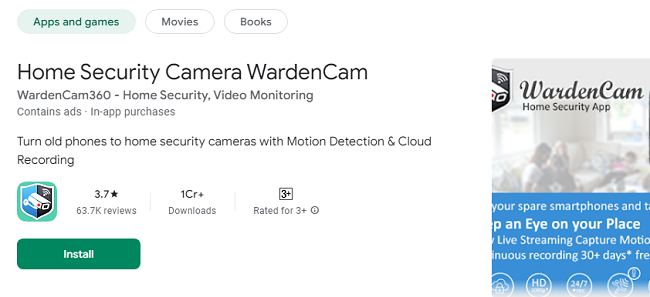
In an age where home security is a top priority, having a reliable surveillance system is essential. WardenCam is a popular home security camera app that transforms old smartphones and tablets into powerful security cameras, providing peace of mind without the high cost of traditional systems. This guide will walk you through the steps to set up and use the WardenCam app, its key features, benefits, and frequently asked questions.
What is WardenCam?
WardenCam is a user-friendly mobile application designed to convert any Android or iOS device into a home security camera. It offers features such as motion detection, cloud storage, live streaming, and alerts, making it an affordable and efficient solution for home security needs.
Why Choose WardenCam for Home Security?
Cost-Effective: No need to purchase expensive cameras—reuse old smartphones.
Easy Setup: Simple, intuitive setup process suitable for all users.
Advanced Features: Includes motion detection, night vision, and cloud backup.
Remote Access: Monitor your home from anywhere using your primary device.
Cross-Platform Compatibility: Works on both Android and iOS devices.
Prerequisites for Setting Up WardenCam
Before setting up the WardenCam app, ensure you have the following:
Two devices: One as a camera and the other as a viewer.
Wi-Fi connection: Both devices should be connected to the internet.
Google account: Needed for sign-in and synchronization.
Charging cable: Keep the camera device plugged in for uninterrupted service.
Step-by-Step Guide to Set Up Home Security Camera WardenCam
Step 1: Downloading the App
Open the Google Play Store (Android) or App Store (iOS).
Search for WardenCam.
Tap Install and wait for the download to complete.
Step 2: Configuring the Camera Device
Open WardenCam on the device you want to use as the camera.
Select Camera Mode during the initial setup.
Sign in with your Google account.
Grant necessary permissions for the app to access the camera and microphone.
Step 3: Configuring the Viewer Device
Open WardenCam on the second device (viewer).
Select Viewer Mode during setup.
Sign in with the same Google account used on the camera device.
The viewer device will automatically connect to the camera device.
Step 4: Adjusting App Settings
Motion Detection: Enable motion detection in the settings menu to receive alerts.
Notifications: Turn on push notifications to stay updated on any activity.
Cloud Storage: Set up cloud backup for recorded footage if needed.
Night Vision: Enable this feature for clear night-time monitoring.
Key Features of WardenCam
Motion Detection: Automatically records and sends alerts when movement is detected.
Two-Way Audio: Communicate through the camera device using the built-in microphone and speaker.
Night Vision: Enhanced visibility in low-light conditions.
Cloud Storage: Securely stores recorded footage on Google Drive or Dropbox.
Multi-Camera Support: Monitor multiple camera devices simultaneously.
Benefits of Using WardenCam
Affordable Home Security: Utilize existing devices, reducing the need for new equipment.
Real-Time Monitoring: Access live video feeds anytime, anywhere.
Customizable Alerts: Adjust sensitivity levels to minimize false alarms.
Secure Data: Encrypted data ensures your recordings remain private.
Environmentally Friendly: Repurpose old devices, reducing electronic waste.
Troubleshooting Common Issues
Issue 1: Devices Not Connecting
Ensure both devices are signed in with the same Google account.
Check that both devices are connected to the internet.
Restart both devices and the app.
Issue 2: Motion Detection Not Working
Verify that motion detection is enabled in settings.
Adjust sensitivity levels to ensure accurate detection.
Ensure the camera device’s view is unobstructed.
Issue 3: No Notifications
Confirm push notifications are enabled for WardenCam in device settings.
Ensure the app has the necessary permissions to send notifications.
Check internet connectivity on both devices.
Frequently Asked Questions (FAQs)
Q1: Is WardenCam free to use?
Yes, WardenCam offers a free version with essential features. A premium version is available for additional features like cloud storage and ad-free usage.
Q2: Can I use WardenCam on multiple devices?
Yes, WardenCam supports multiple camera and viewer devices simultaneously under the same Google account.
Q3: Does WardenCam work without Wi-Fi?
WardenCam requires an internet connection to sync between the camera and viewer devices, but local storage can work offline.
Q4: Is my data secure with WardenCam?
Yes, WardenCam uses encryption to protect your data, and cloud storage options provide additional security.
Q5: How much storage space does WardenCam require?
The storage depends on the length and quality of the recordings. Cloud storage options are available for extended storage needs.
Q6: Can I receive alerts on multiple devices?
Yes, you can log in on multiple viewer devices to receive alerts and monitor footage.
Q7: Does WardenCam support night vision?
Yes, WardenCam includes a night vision mode for low-light environments.
Conclusion
WardenCam is a versatile and cost-effective solution for enhancing home security using devices you already own. By following this guide, you can quickly set up WardenCam, customize its features, and enjoy peace of mind knowing your home is secure. Whether you’re at work or on vacation, WardenCam ensures that your home is always under watchful eyes.